
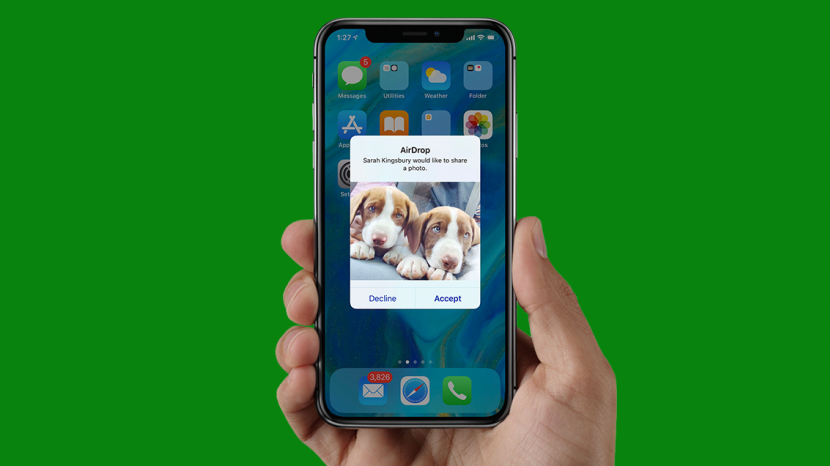
One of my favorite uses for my iPhone is taking and sharing pictures, but with so many different methods and platforms, it can get a little tricky. In this guide, I’ll cover everything I’ve learned about saved images and photos, including how to save and share them from text and iMessage, from email, with AirDrop and iCloud, from Shared Albums, and even social media platforms like Facebook and Instagram. After we cover that range of topics, we’ll go over how to transfer pictures from your iPhone to your Mac and PC so you can keep your photos and albums organized and safe. Let’s get started!
Índice de contenido
- 1 Table of Contents
- 2 Save Photos from Text & iMessages on iPhone
- 3 How to Save Multiple Photos & Videos from an iMessage Thread
- 4 How to Upload Photos & Videos to an iMessage
- 5 How to Save Photos & Videos You Receive from Email on the iPhone
- 6 How to Upload & Email a Photo on Your iPhone
- 7
- 8 How to Share Photos with AirDrop
- 9 How to Save a Photo Sent with AirDrop
- 10 How to Create a Shared iCloud Photo Album & Add People to It
- 11 How to Share Albums with Android Users
- 12 How to Add Pictures & Videos to a Shared Album
- 13 How to Save Photos from Shared Albums
- 14 How to Share & Save Pictures from Social Media
- 15 How to Transfer Your Photos from iPhone to Computer (Mac or PC)
Table of Contents
- Save Photos from Text & iMessages
- Save Multiple Photos & Videos from an iMessage Thread
- Upload Photos & Videos to an iMessage
- Save Photos & Videos You Receive from Email
- Upload & Email a Picture
- Share Photos with AirDrop
- Save Images Sent with AirDrop
- Create a Shared iCloud Photo Album & Add People to It
- Share Albums with Android Users
- Add Pictures & Videos to a Shared Album
- Save Photos from Shared Albums
- Share & Save Pictures from Social Media
- Sharing Photos & Videos via Facebook Messenger
- Saving Photos & Videos from Facebook Messenger
- Sharing Instagram Posts
- Saving Pictures from Instagram
- Transfer Your Photos from iPhone to Computer (Mac or PC)
Save Photos from Text & iMessages on iPhone
A friend or family member sends you a text message with an adorable photo attached. Now you’d like to download the photo, but how? I’ll use a cute picture of my sister’s cats to guide you through the process.
Just follow the steps below:
- Tap on the photo.
- Tap on the Share icon at the bottom of your display.
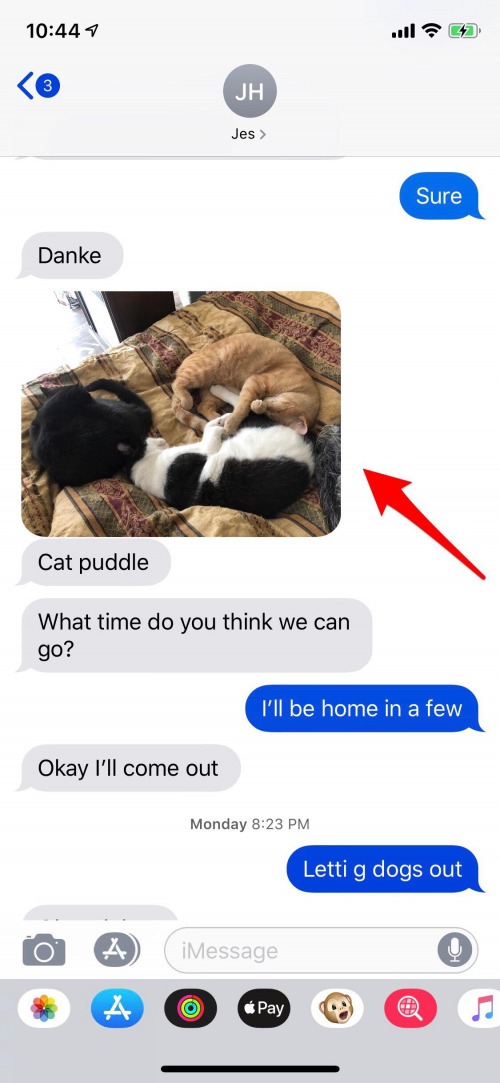

- A menu will appear with ways to further share the photo through a message, email, and more. Below these options, you’ll see the Save Image option.
- Now, when you open your Photos app, you’ll see the image you just saved.

Interestingly enough, the photo will be sorted into place in the Photos tab depending on the day it was taken, not the day you saved it. If you’re having a hard time finding your saved photo, this may be why. Tap on the Albums tab at the bottom of the display, then tap All Photos and you’ll see your picture as the most recent in your queue.
How to Save Multiple Photos & Videos from an iMessage Thread
If someone has sent you more than one photo or video you’d like to save, there’s a convenient way to download this content all at once. To accomplish this:
- Open the Messages app and tap on the thread you’d like to save photos from.
- Now tap on the tiny carrot next to the sender’s name, then tap info.


- Now tap on Images, and you’ll see all the photos and videos that have been sent back and forth between you and your chosen contact.
- Long press on a video or picture you’d like to save, then tap More when the option appears.
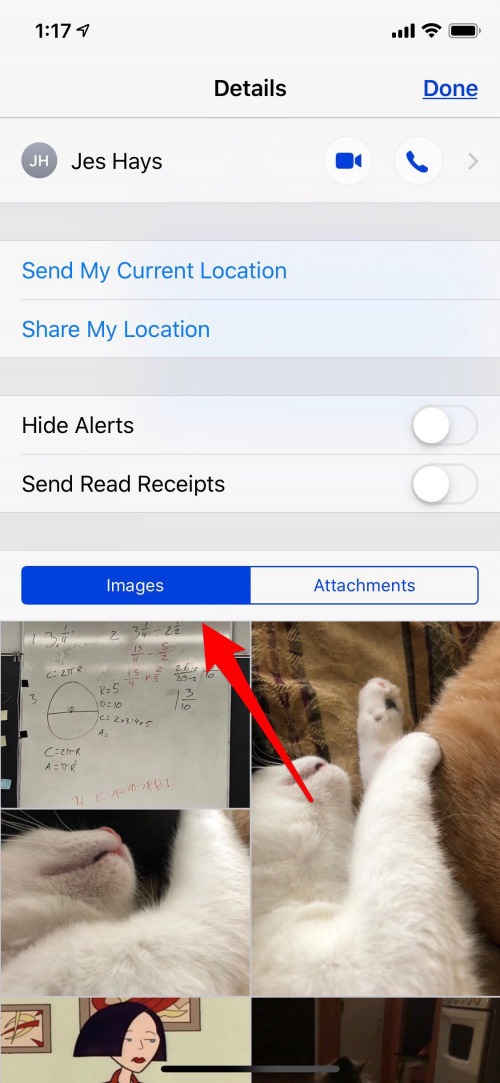

- You’ll see a check in a blue circle appear on your choice; now you can tap any additional pictures you’d like to download.
- When you’ve finished choosing, tap Save (however many you selected) Images at the bottom left of your display, and your selections will be saved to the Photos app.

How to Upload Photos & Videos to an iMessage
Now that you’ve learned how to save photos and videos that others have sent to you, it’s time to learn how to reciprocate! To send a picture in an iMessage or text:
- Open the text thread with the person you’d like to share a photo with.
- Tap the photos icon (it looks like a rainbow flower), then scroll through Recent Photos in the Messages app or tap All Photos to go to the Photos app.
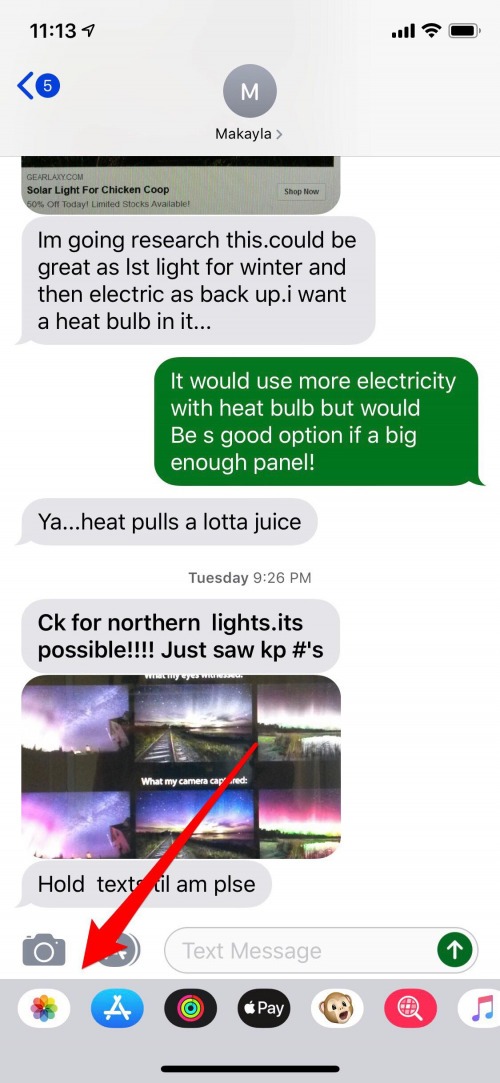

- If you chose All Photos, tap the section of the Photos app you’d like to look through, then select your picture. If you want to upload a video, tap Videos and choose from there.
- The photo or video will appear within the text field; feel free to add text if you wish, then tap the send arrow.


How to Save Photos & Videos You Receive from Email on the iPhone
You can save pictures or videos from email messages right on your iPhone, here’s how:
In the Mail app, open the email with the photo(s) you want to save.
Tap the image.
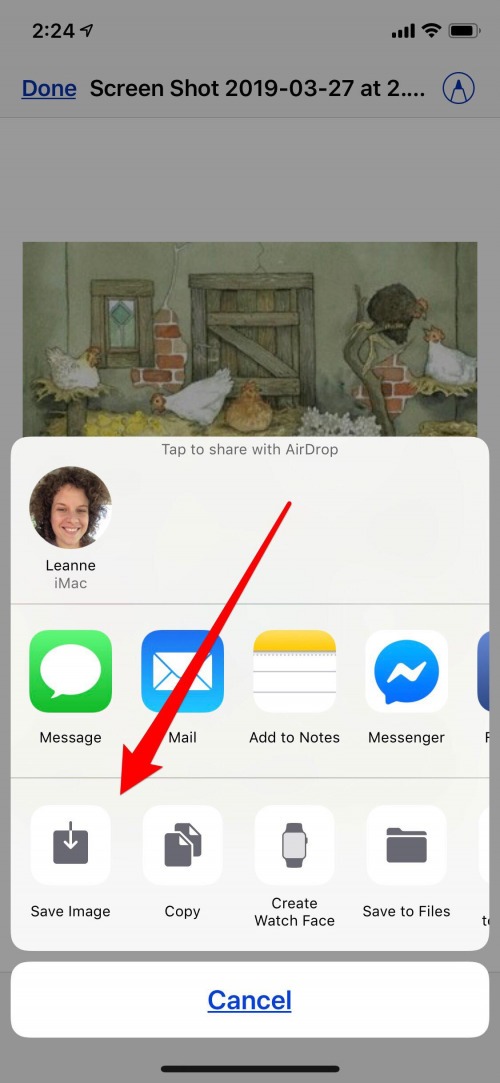
To save the photo, tap the Share icon at the lower-left corner of your screen.


- Tap Save Image.
How to Upload & Email a Photo on Your iPhone
Copy & Paste a Photo into an Email
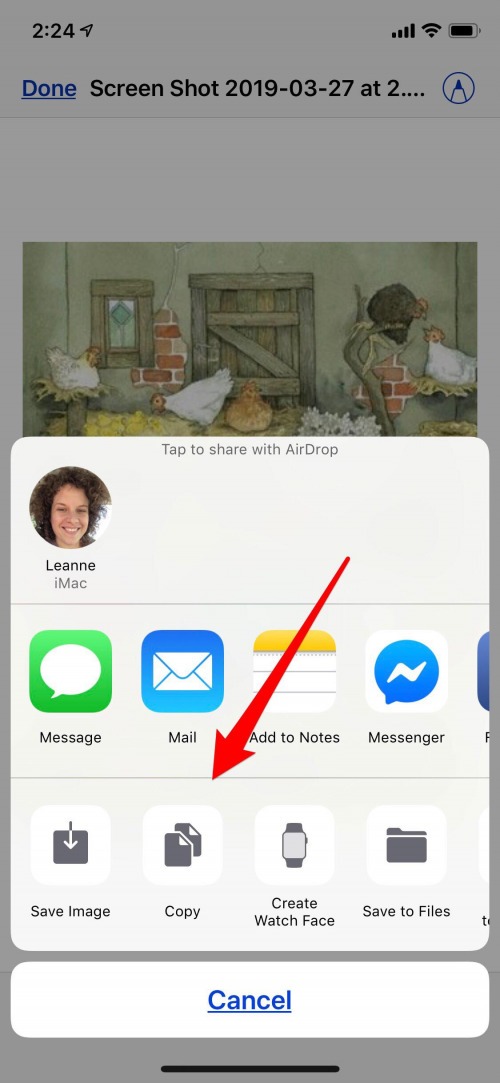
Now that you know how to save a photo from an email message let’s learn how to upload and share a picture via email. The first method, copying and pasting, happens from the same menu that allowed you to save an image from an email. If you’d like to share an image from an email:
- To copy and paste a photo from one email into a new email, tap Copy.
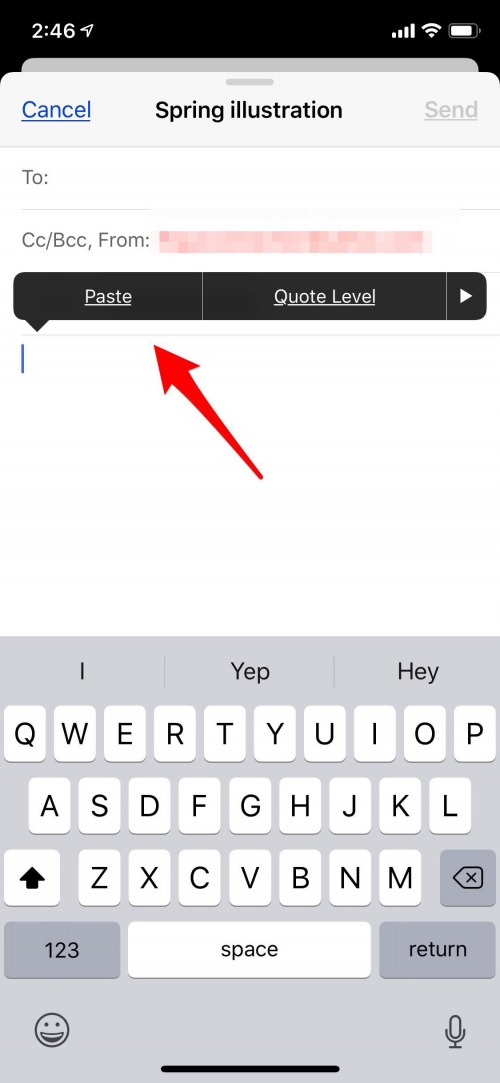
- To paste a copied photo, start a new email. Tap and hold in the body of the email and select Paste.
Choose a Picture from the Photos App to Send in an Email
For the second method, open your email app and start a new email, then:
- Tap the body of the email twice; a menu will appear, tap Insert Photo or Video.
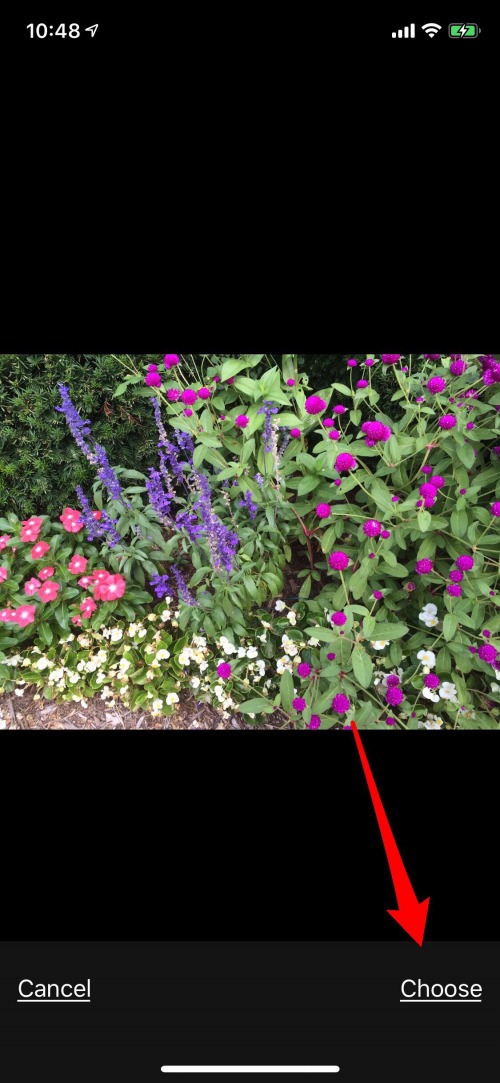
- Choose from the options in your Photos app.

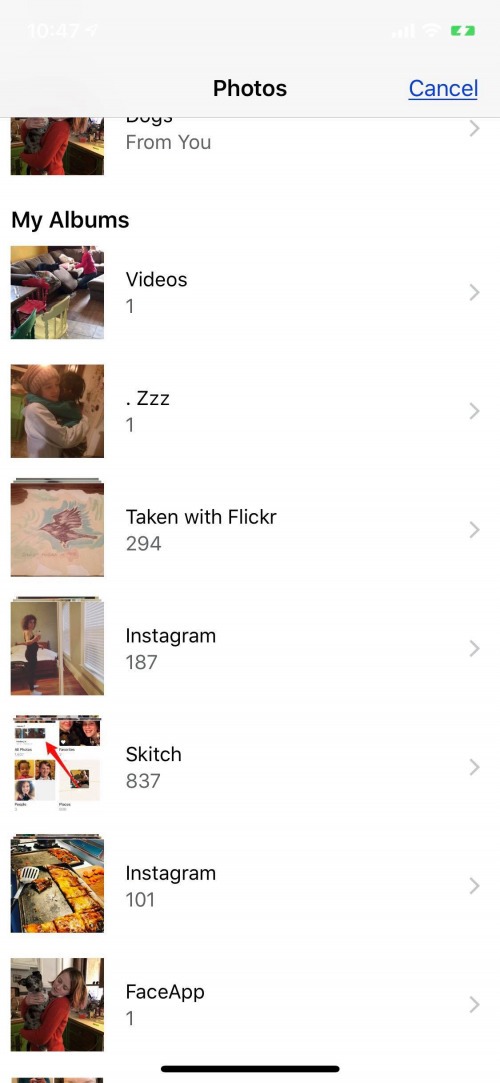
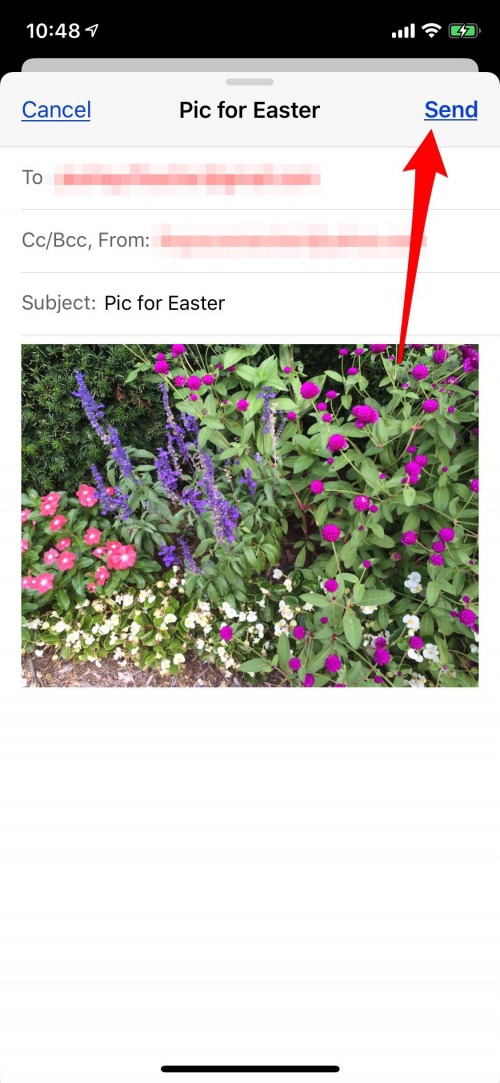
- Tap Choose and the image will be inserted into the body of your email.
- Tap Send, and your message and photo are on their way!
Getting Started with AirDrop
Follow this link to learn which devices and operating systems are compatible with AirDrop, as well as how to enable the feature.
How to AirDrop a Photo
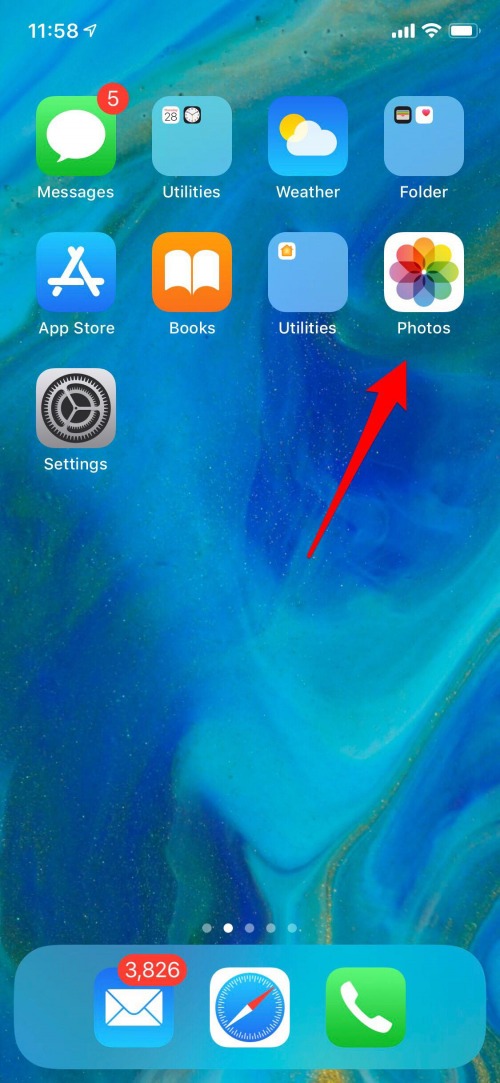
- To AirDrop a picture, open the Photos app.
- Tap on one or more photos you want to share.
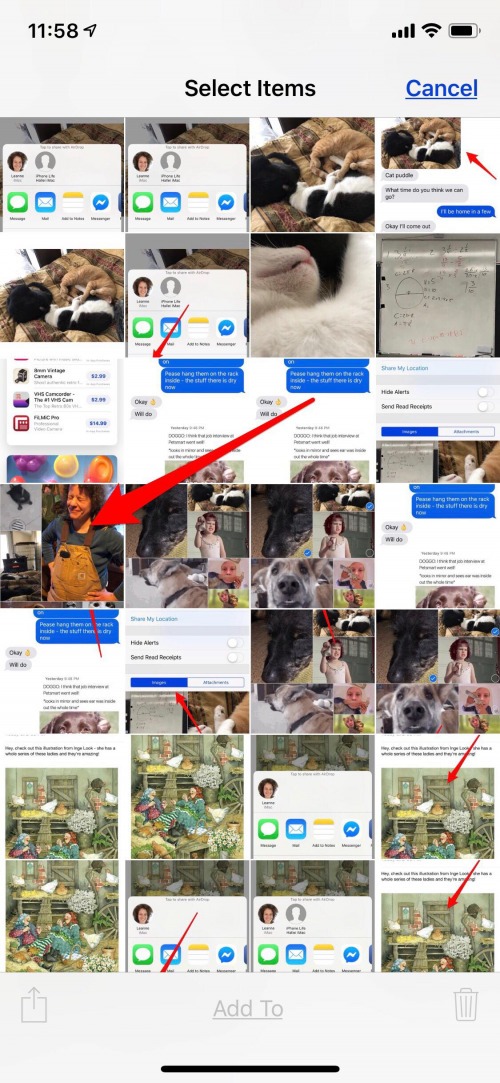
- Then tap the Share icon that’s located in the lower left corner of your iPhone.
- Near the top of the Share menu, you’ll see Tap to share with AirDrop. Below that any available devices to receive your AirDrop will appear.
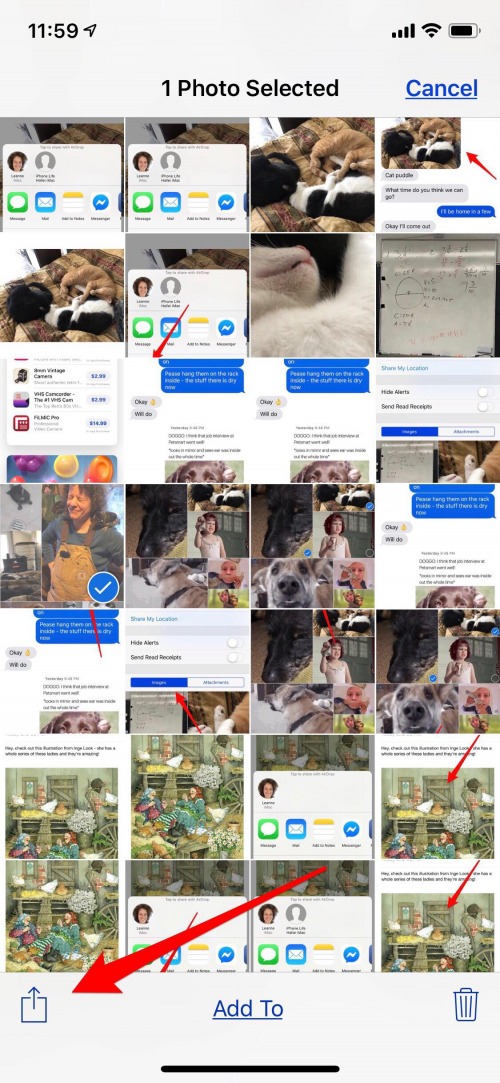

- In this case, you can see that mine and a coworker’s iMacs are the only devices nearby that I can send these photos to. In more crowded places, I can see icons for many iPhones and other devices working in about a 30-foot vicinity of me.
- To AirDrop your photos (or other media), tap the device you want to send them to.
If you’re sending the photos to another of your devices, they’ll automatically download and save. If you’re sending pictures to someone else, they’ll receive a notification that you’re trying to AirDrop them something. They can then accept or decline it.
How to Save a Photo Sent with AirDrop
When you get a notification on your device that someone has AirDropped you a photo, how can you save it? Don’t worry, this one is really easy!
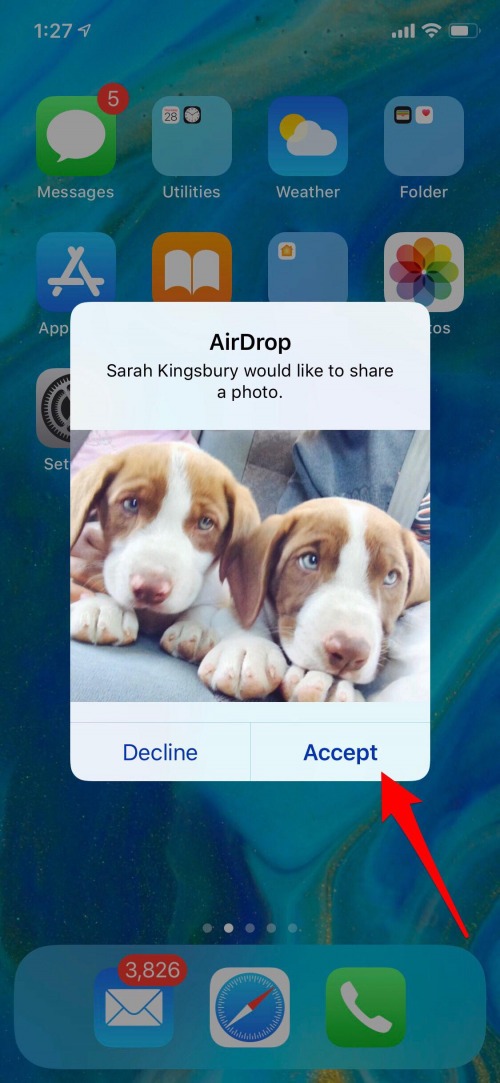
- You’ll see a notification on your iPhone that someone has AirDropped you a photo, simply tap Accept.
- The photo will automatically be added to your photo library in your Photos app.
This method is perfect for those times when you have a large number of photos to share or if you want to share photos on an ongoing basis. If you have just a few, email or iMessage will be quicker. Before you use this method of photo sharing, you’ll need to set up iCloud drive for yourself. Once that’s done, it’s time to turn on Shared Albums.
- Open the Settings app and tap the banner with your name in it at the top of the page.
- Tap iCloud, then tap Photos.
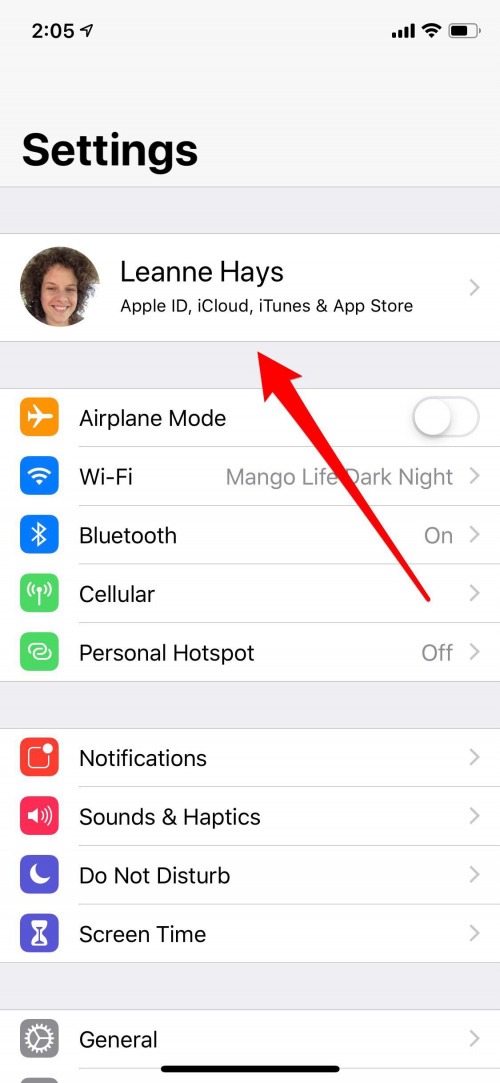

- From here, toggle on iCloud Photos and Shared Albums.

Now if you’d like to put together a Shared Album for friends and family to be able to view, add to, and comment on, you can!
- Open the Photos app and tap on the Albums tab at the bottom of the page.
- Now tap on the plus sign at the upper left of the display.

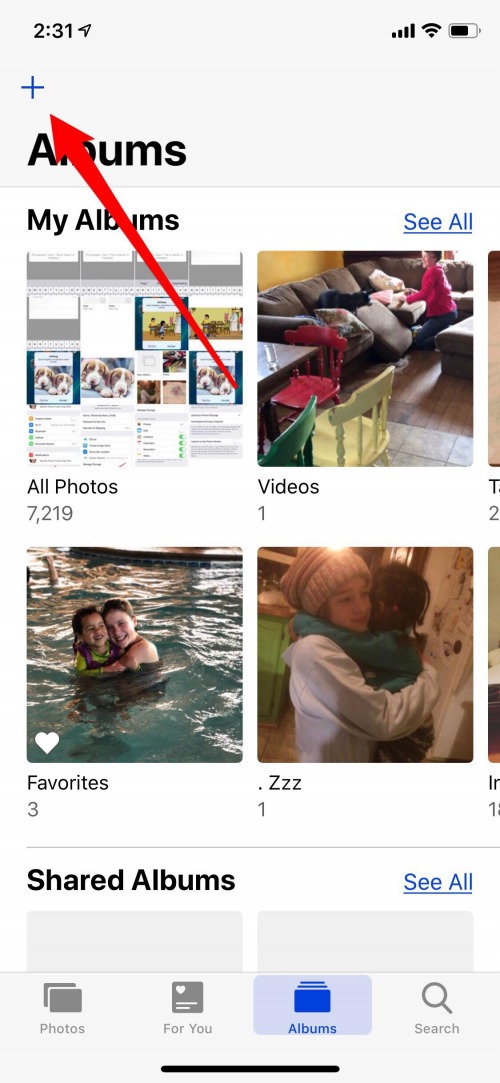
- Tap New Shared Album.
- Now you can name your album and tap Next.
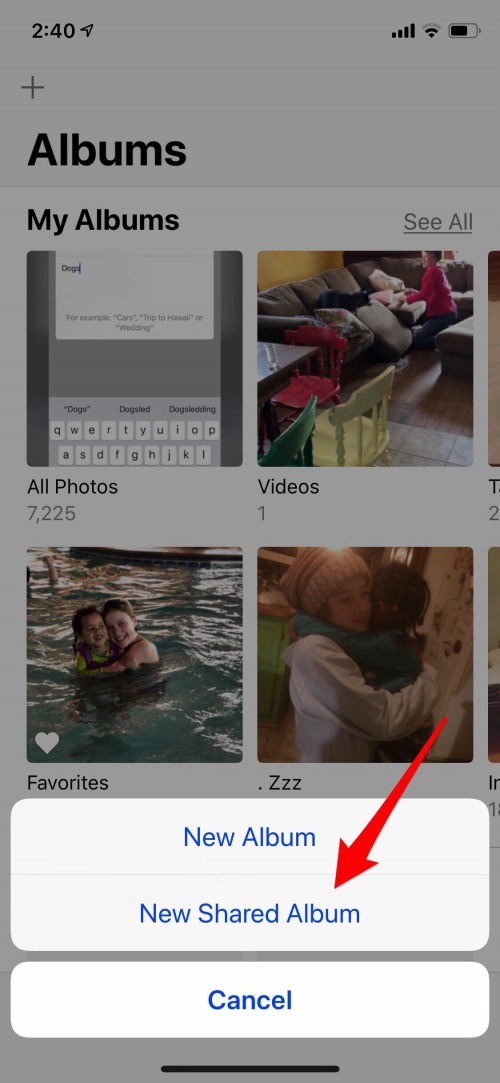
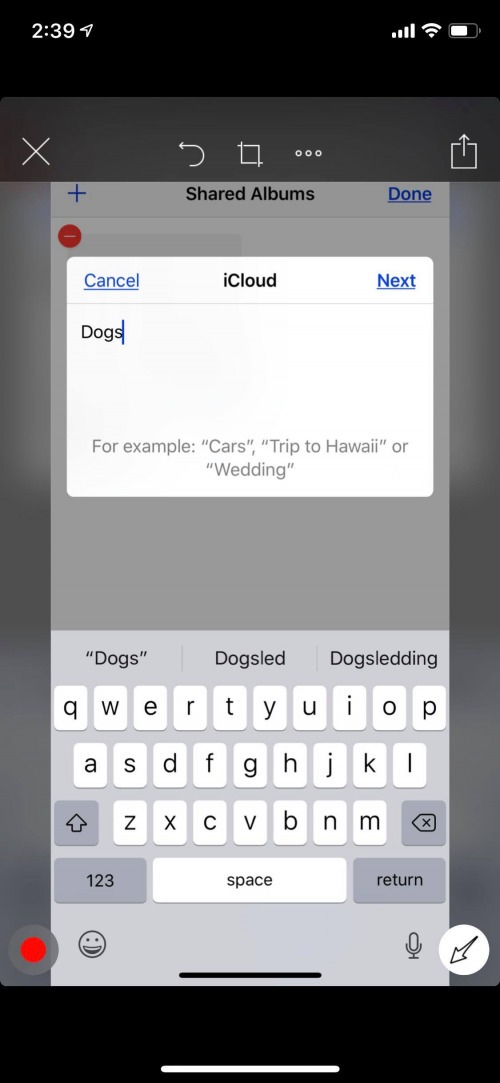
- Now type in email addresses, iPhone numbers, or enter people from your Contacts; you can enter up to 100 people!
- Tap Create and your Shared Album is done.
If you’d like to change your album settings so you can invite people who use Android or other non-Apple phones:
- Open the Shared Album you created.
- Tap the People tab at the bottom of the page.
- Toggle on Public Website.
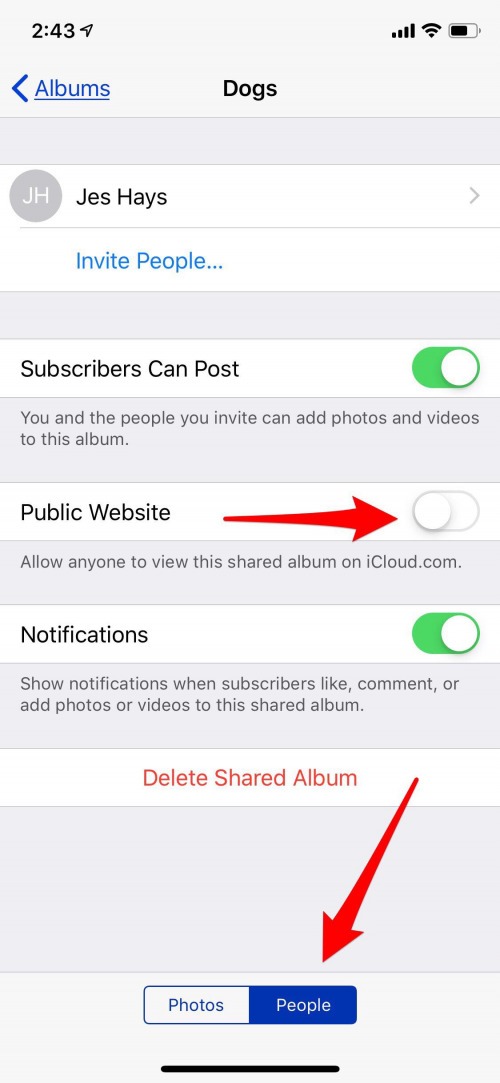
To add photos and videos to a shared album:
- Tap the Photos tab at the bottom of the Photos app, then choose the photo or video you’d like to share by tapping it.
- Now tap the Share icon.
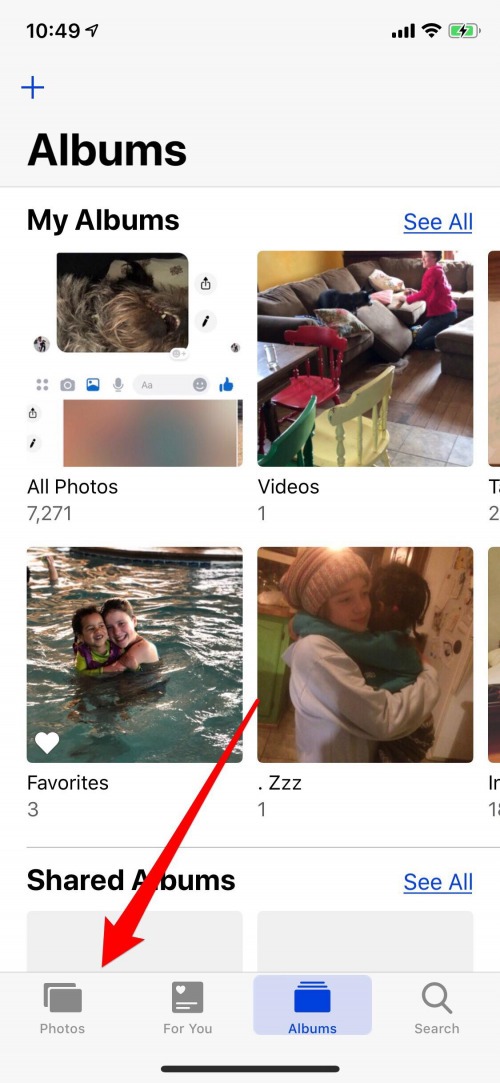

- Scroll left along the sharing options menu and tap More.
- Now tap Shared Albums.

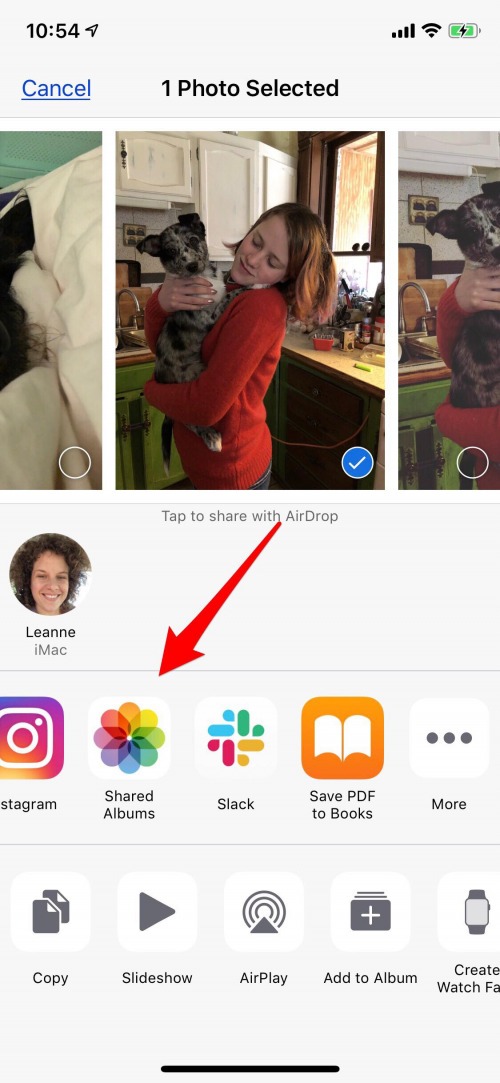
- Choose the Shared Album you’d like to post your photo to, comment, and tap Post.

It’s possible to save photos and videos from a Shared Album to your own photo library. Once you’ve opened the Shared Album:
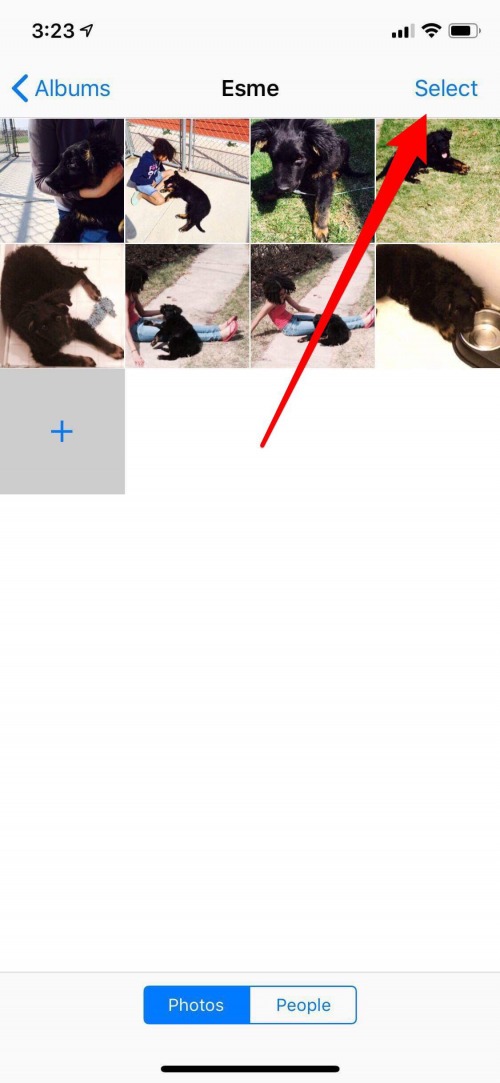
- Tap on one or more photos you’d like to save, then tap Select.
- Tap the Share icon.

- Tap Save Image or Save Video.
- The photo or video will be saved to your Photos app.
I use social media to share photos and videos just as often as any of the other methods I’ve coverd above. Below, I’ll go over two of my favorite platforms, Facebook and Instagram, and how to upload images to and save pictures from these accounts.
Sharing Photos & Videos via Facebook Messenger
You’d like to send a photo or video to a friend via Facebook Messenger? Here’s how:
- Open the Messenger app and tap the New Message icon at the upper right of your display.
- Choose the recipient of your message by entering their name in the Search Bar or choosing from the Suggested menu.


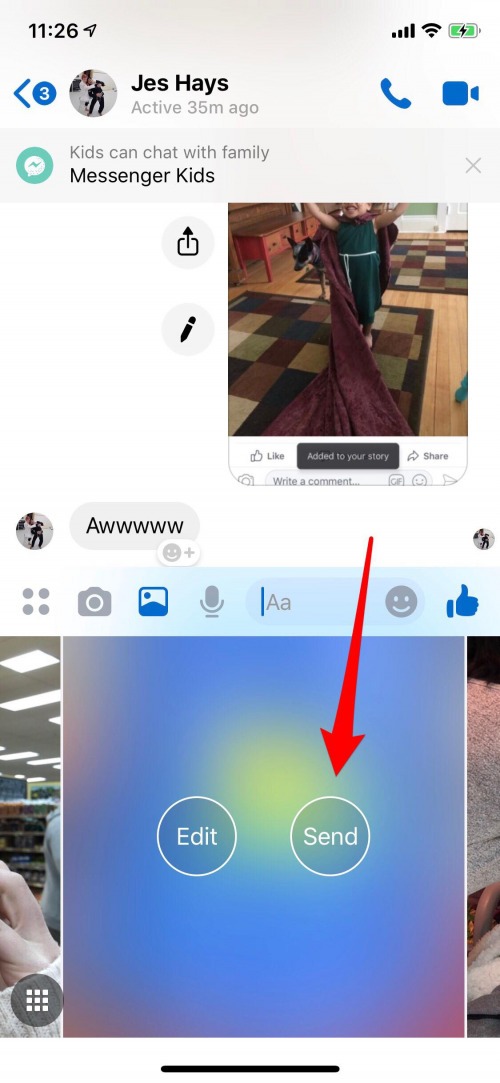
- Tap on the Photo icon.
- Choose the photo or video you’d like to send.


- Tap Send on the photo or video.
Saving Photos & Videos from Facebook Messenger
If you’ve received a photo or video via Messenger that you’d like to save:
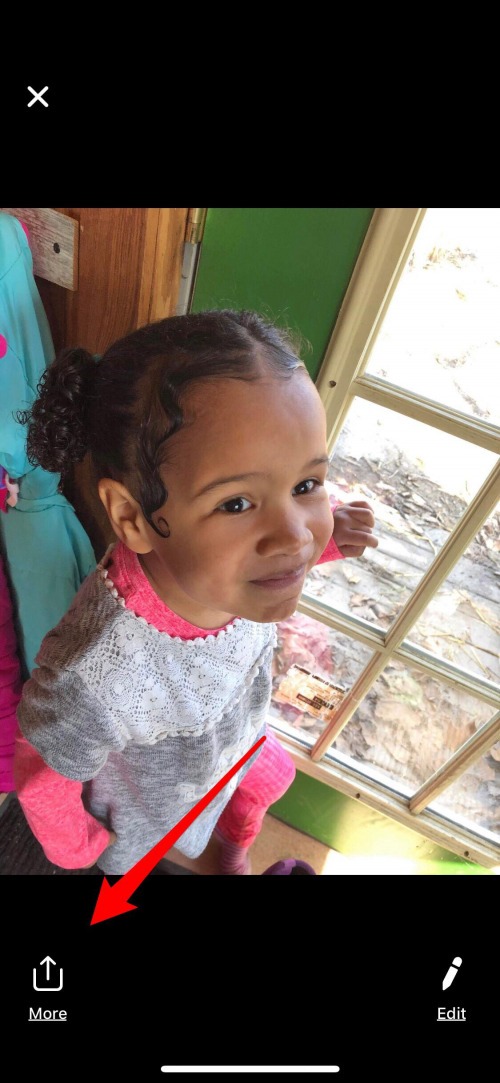
- Tap the picture, then tap More at the bottom of the display.
- Options will appear including Forward, Share, and Save Photo, tap Save Photo.
- The image will be saved to your Photo Library.

Instagram: https://upleap.com/blog/save-instagram-photos/
Sharing Instagram Posts
If you’d like to share a picture from your Instagram account:
- Tap on the person icon at the bottom of the home page to go to your profile.
- Tap a photo you’d like to share, then tap the paper airplane icon.


- A list of potential recipients will appear; there’s also the option to search for a contact. Choose a person and tap Send, a link to your post will be sent.

Saving Pictures from Instagram
If you’d like to save an Instagram photo, it’s possible, but please ask permission from the creator before editing or sharing these images as all content on the platform is copyrighted. Let’s first learn how to save an Instagram photo within the app; this is extremely useful because you can create collections for different topics and reference them whenever you need to.
- Tap on an image you’d like to save, then tap on the bookmark icon at the bottom of the page.
- Once you’ve successfully bookmarked the post, the bookmark icon will turn black.


To find a bookmarked post:
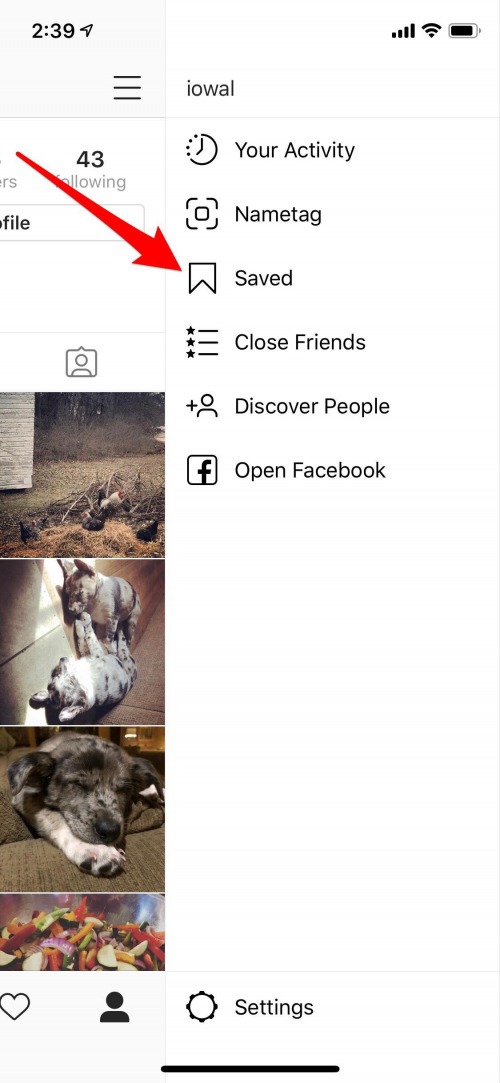
- Go back to your profile page and tap on the “hamburger icon”.
- Now tap on the Saved section.

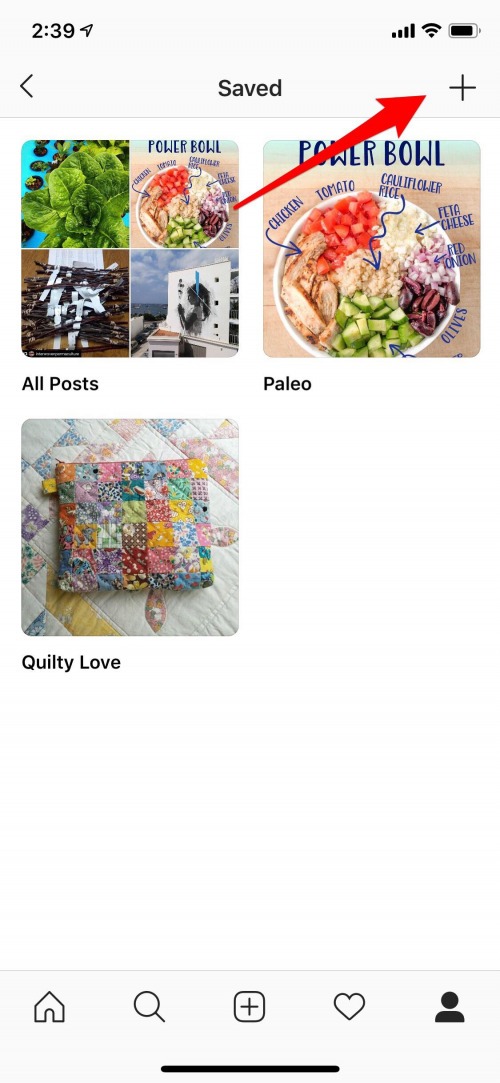
- Here’s where all your bookmarks are saved; if you want the item you just bookmarked to go into a special collection, tap the plus sign.
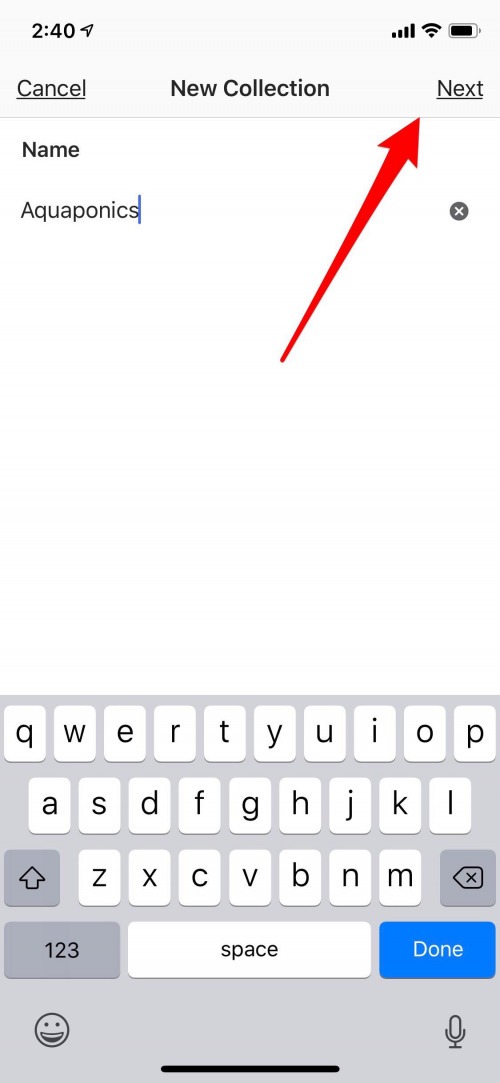
- Name your collection and tap Next.
- Now just tap on the bookmarks you’d like to add to your collection.
- Here’s my new Aquaponics collection; I can add to it whenever I find posts on the topic I’d like to bookmark.


Another option for saving Instagram posts is to screenshot the page. This method is useful because if a post is taken down from Instagram, you’ll still have the content you wanted to save. If you’d like to try this method, click here to learn how.
How to Transfer Your Photos from iPhone to Computer (Mac or PC)
Now that you’ve learned how to save photos and videos to your iPhone from so many different sources, you might want to learn how to transfer them to your computer. There are several different ways to accomplish this; read this article to learn how.
Publicaciones relacionadas:
 ¡Continúe la fiesta con el altavoz Bluetooth HMDX Jam y la batería portátil myCharge! ¡Especiales del Black Friday!
  Revisión: Lucyd Loud Audio Glasses
  Cómo escribir notas directamente desde la pantalla de bloqueo de su iPhone
  Cómo usar los nuevos gestos de 3 dedos para deshacer y rehacer la escritura en su iPhone
  Revisión: Mophie Powerstation PD ofrece potencia y flexibilidad de alta velocidad
  Cómo desactivar emojis automáticos en mensajes de texto de iPhone
  Cómo verificar los niveles de batería de Apple Watch en iPhone
  Cómo eliminar contactos de correo electrónico sugeridos en Mail en iPhone
  Cómo usar el temporizador de apagado automático en la aplicación Podcast de su iPhone
  Revisión: la base del reloj despertador y el altavoz del iPhone alcanzan la mayoría de las notas altas
  ¡Es la hora! Puedes reservar el iPhone X ahora
  El estuche y soporte de carga iPort llevan carga inalámbrica al iPad